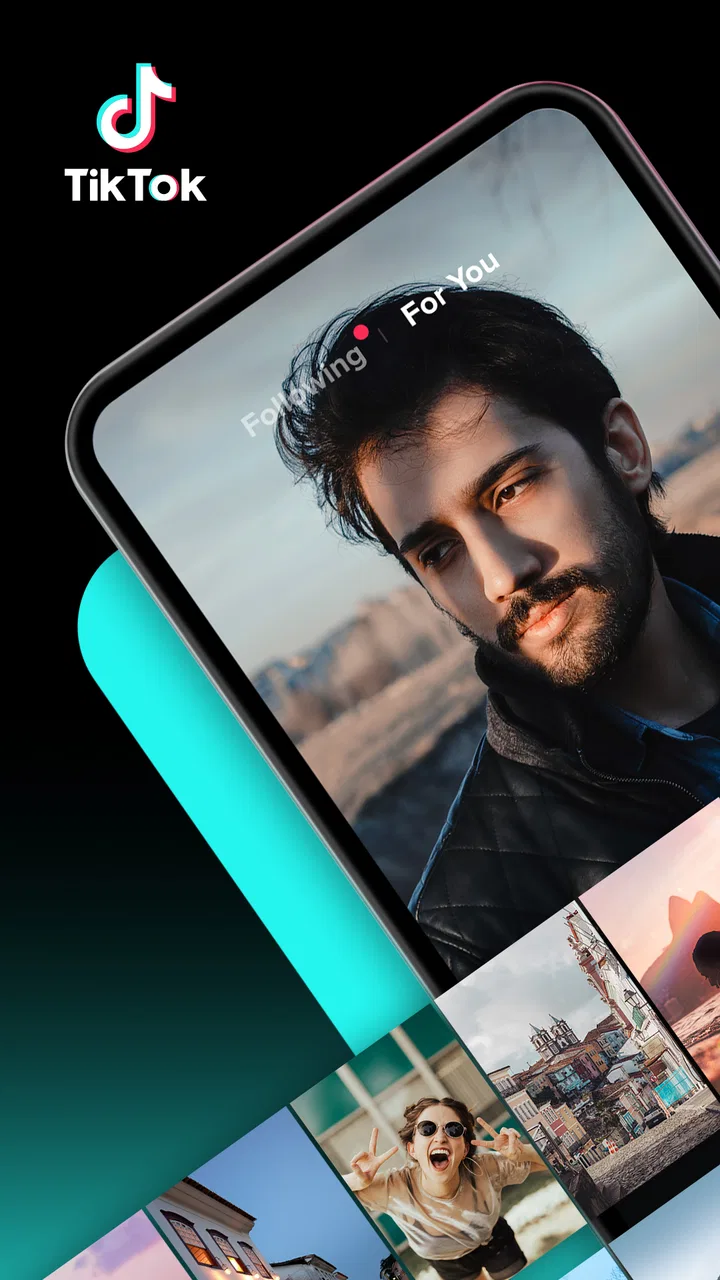
TickTock-TikTok Live Wallpaper
- 4.7
- Rating
- 100.00M
- Installs
- Free
- Price

 Analysis by App-foxy
I tested TickTock-TikTok Live Wallpaper as a small utility for turning TikTok videos into phone backgrounds, and my first impression was that it is more focused than its playful name suggests. It is not a general wallpaper library, a video editor, or a social feed replacement. Its purpose is much narrower: help you use TikTok content as a moving wallpaper on a compatible Android phone.
That narrow purpose is also its main appeal. If you already save or enjoy short TikTok clips and want one of them on your lock screen or home screen, this app can feel more direct than searching through ordinary animated wallpaper apps. If you want extensive customization, advanced editing, or a large collection of ready-made backgrounds, I would look elsewhere. The experience depends heavily on the phone, the selected video, and the exact way Android handles live wallpapers.
Where the wallpaper setup usually gets stuck
The most confusing part is often not choosing the clip. It is understanding what happens after the choice. A video wallpaper is not the same as a normal image: Android has to accept it as a live wallpaper, the launcher has to display it correctly, and the phone may apply it to one screen or more than one depending on its own interface. When something appears not to work, the app is not automatically the problem.
You May Also Like

 Pandora - Music & Podcasts
Pandora’s Music Is Easy to Start, but Harder to Recover
Pandora’s strength is its low-effort path from a seed to a station. Its weak spot is how much confidence it asks you to place in connection, setup, and quiet recovery.

 8 Ball Pool
 Is Built on Rivalries, Rematches, and Routine
A close look at the rivalries, rematches, shared routines, and unanswered safety questions that turn a quick pool match into a persistent mobile community.

 Samsung Music
’s Quiet Strength Is Playing What You Already Own
Its reach comes less from spectacle than from dependable access to a personal library. That simplicity is both the app’s strongest retention engine and its ceiling.

 AccuWeather: Weather Radar
AccuWeather Review: A Quick, Clear Forecast for Everyday Decisions
For everyday plans, the best forecast is the one you can understand quickly. AccuWeather makes rain timing, radar, and local conditions easy to act on, with a few trade-offs.

 Hill Climb Racing
Why Hill Climb Racing Still Turns Crashes Into One More Run
A tiny car, a bumpy hill and one more upgrade: Hill Climb Racing keeps resurfacing because its simple chaos makes every near-miss feel personal.

 AliExpress - Shopping App
AliExpress Makes Global Shopping Feel Personal, but Shoppers Bear the Risk
AliExpress turns a global marketplace into a pocket-sized discovery engine. Its reach is useful, its shopping loop compelling, and its trade-offs easy to miss.
More From Our News Desk
View All News


In my experience, the first useful habit is to separate the process into three stages: selecting the TikTok video, preparing it inside the wallpaper tool, and confirming it through the phone’s wallpaper controls. If you treat those as one single action, a failed result can be difficult to diagnose. If you check each stage separately, it becomes much easier to see whether the clip was never selected, the preview did not load, or Android simply did not apply the final choice.
Another common point of friction is expecting the wallpaper to behave exactly like a TikTok video. A live wallpaper is designed for the background, not for browsing, commenting, or interacting with the original post. The result may be a visual loop rather than a full social-video experience. That distinction matters if you are choosing a clip with dialogue, small text, or a carefully timed punchline: the wallpaper format may not preserve the same impact as watching it in TikTok.
It is also worth checking the phone’s own behavior before repeatedly reinstalling anything. Some Android launchers show animated backgrounds differently on the home screen and lock screen. Some devices make you choose between those locations, while others offer a combined option. A wallpaper that appears correctly in a preview may therefore look absent on one screen even though it was applied successfully somewhere else.
The practical lesson is to troubleshoot the handoff to Android, not just the app. TickTock-TikTok Live Wallpaper acts as the bridge between TikTok-style video content and the phone’s wallpaper system. The final appearance is shared between those two parts.
What makes this tool different from ordinary wallpaper apps
Most wallpaper apps begin with a catalog. You browse categories, tap a background, and apply it. This tool starts from a different idea: the content you want may already be in TikTok, and the app helps move that content into a wallpaper workflow. That is useful for people who have a specific creator, visual style, or personal clip in mind.
The trade-off is convenience versus breadth. A catalog app is usually easier when you do not care which moving image you use. TickTock is more interesting when you already know the video you want. It is especially suitable for a personal favorite, a calming loop, a travel scene, or a visual that matches your phone’s theme. It is less suitable if you want to compare many professionally designed backgrounds before making a decision.
I also would not confuse it with a video editor. If the source clip has an awkward opening, unreadable text, or a subject positioned too close to the edge, the wallpaper tool is not necessarily the right place to correct it. The best results begin with a clip that already works vertically and remains understandable when viewed behind icons.
Setup checks that save time
Before selecting a video, I recommend checking the basic environment. TickTock-TikTok Live Wallpaper is an Android tools app from TikTok Pte. Ltd., and its listed minimum operating system is Android 4.1. That makes the compatibility requirement relatively broad on paper, but an old operating-system requirement does not guarantee identical behavior on every modern launcher or manufacturer skin.
Start with the phone’s available storage and the source clip itself. A wallpaper workflow needs room to handle the selected media, and a nearly full device can produce vague failures that look like an app issue. I would also avoid beginning with a long or visually complicated clip. A short, clear video with a stable subject is a better diagnostic test than a clip full of rapid cuts, tiny captions, or effects.
Next, confirm that the video is actually available to the workflow you are using. If you are moving between TikTok and the wallpaper tool, keep the steps simple and avoid changing apps repeatedly while a preview is still loading. If the preview is blank, wait briefly, return to the previous screen once, and try the same clip again. Repeating the entire process with several different videos at once makes it harder to identify the cause.
The phone should also be tested without aggressive battery or background restrictions interfering with the process. I am not suggesting changing every system setting. Instead, look for the ordinary battery-management screen and check whether the app is being closed immediately after you leave it. This is a general Android troubleshooting step, not a guarantee that every device uses the same menu or wording.
When applying the result, watch for the system’s own confirmation screen. The important action may be handled by Android rather than by the app’s preview. If the phone asks where to place the wallpaper, read that choice carefully. Selecting only the lock screen can make the home screen appear unchanged, while choosing only the home screen can create the opposite impression.
A useful setup routine is:
Choose one simple vertical clip for the first test.
Let its preview finish before moving to another screen.
Apply it through the phone’s wallpaper confirmation step.
Check the exact screen where you intended to use it.
Only then experiment with another video or a different placement.
This routine sounds basic, but it prevents the most common mistake: changing the clip, the screen destination, and the phone settings simultaneously. A controlled first test gives you a reliable baseline.
Choosing a clip that survives the wallpaper format
Not every TikTok video makes a good background. I found that clips with one main subject and a relatively uncluttered composition are easier to enjoy behind app icons. A face, landscape, pet, or simple motion pattern usually works better than a tutorial whose important information is written in small text across the frame.
Pay attention to where the visual action happens. Home-screen icons can cover the lower portion of the image, while notification elements may overlap the upper area. A clip that looks perfect in TikTok can become distracting when its main subject sits directly beneath icons. I would preview it with the phone’s normal layout in mind, not as a full-screen video.
Sound is another practical consideration. A moving wallpaper should not be selected on the assumption that it will deliver the same audio experience as TikTok. If the appeal of a clip depends entirely on its soundtrack or spoken explanation, a normal video or social app may be a better way to enjoy it. For wallpaper use, visual continuity matters more than audio timing.
There is also a privacy angle in everyday use. A personal clip may look harmless on your own phone but become visible whenever you show the lock screen to someone else. I would avoid using anything with private messages, identifiable information, or a context that could be misunderstood when seen briefly. The app’s convenience makes personal selection easy, so the responsibility for the chosen content stays with the user.
Recovering when the workflow fails
If the wallpaper does not appear, I would first return to the phone’s wallpaper picker and see whether the live wallpaper is listed or selectable there. This helps distinguish an application problem from a launcher refresh problem. If the wallpaper is available in the system picker but not visible on the intended screen, reapplying it from that picker is a sensible next step.
If the preview itself fails, test a different clip rather than assuming the whole app is broken. One source video may be unavailable, unsuitable for the workflow, or difficult for the phone to process. A second, simpler clip can reveal whether the issue is tied to the media or to the app.
When the app seems frozen, close it normally and reopen it before taking more drastic action. If that does not help, restarting the phone is a reasonable general step because it refreshes the launcher and wallpaper service as well. I would avoid clearing app data immediately if I had already selected content I wanted to keep; start with the least disruptive recovery option.
Another useful check is whether the wallpaper changes after unlocking the phone or returning to the home screen. Some failures are really timing issues: the preview works, the system accepts the choice, but the launcher has not refreshed its display. Moving between the lock screen and home screen once can clarify whether the wallpaper was applied to the wrong destination.
After a successful test, do not change several system settings at once. If you want to try a different screen, a different clip, or another launcher setting, change one variable and observe the result. This is particularly helpful on phones with heavily customized Android interfaces, where the same live-wallpaper action may be presented differently from the standard Android flow.
For a dependable daily workflow, I would keep the chosen clip simple, apply it from the system confirmation screen, and avoid treating every temporary display issue as a reason to start over. The app is most useful when it becomes a short conversion step rather than something you repeatedly open to manage a large wallpaper collection.
When the app is not the cause
There are several situations where blaming TickTock would be unfair. If the phone’s launcher does not refresh, if the wallpaper is applied to a different screen than expected, or if battery management closes the process, the visible symptom can still be “the video wallpaper disappeared.” Those are system-level behaviors, and the correct fix may be in Android’s settings rather than inside the app.
A device running an older or heavily modified Android interface may also handle live wallpapers differently. The minimum operating-system listing tells me the app is intended to support an old Android baseline, but it does not mean every manufacturer’s interface will present identical controls. I would judge compatibility by the actual preview and application flow on the phone, not by the age of the operating system alone.
The source video can be the cause as well. A clip with unusual framing, excessive visual movement, or important content at the edges may technically work while still feeling poor as a wallpaper. In that case, the app has done its job, but the selected media is a bad match for the format. Choosing a calmer clip is more useful than repeatedly changing permissions or reinstalling the tool.
There is a performance trade-off too. Animated backgrounds are more demanding than still images, even when the app itself is lightweight. If the phone feels less responsive, the battery seems to drain faster, or you simply dislike constant motion, a static wallpaper is the better choice. I would not keep a live wallpaper merely because it is novel; the background should remain pleasant during ordinary use.
People who need precise cropping, color correction, text removal, or a perfectly timed loop may be happier with a dedicated video-editing workflow followed by a system wallpaper picker. TickTock is convenient for turning suitable TikTok content into a background, but it should not be treated as a full production tool.
Who will enjoy it, and who should skip it
I think this app is a good fit for someone who already uses TikTok, has a favorite video in mind, and wants a personal animated background without browsing a separate catalog. It also suits users who enjoy changing their phone’s look around a mood, a season, or a memorable clip. Because it is free and rated for Everyone, it is easy to try without making the decision feel permanent.
It is less convincing for someone who wants a polished wallpaper collection with search, categories, and a consistent visual standard. It is also a weak match for users who prefer maximum battery efficiency, dislike movement behind icons, or expect the wallpaper to include the original video’s complete social features.
The app’s popularity is substantial: it has passed one hundred million installs and holds a 4.7 average from roughly 1.8 million ratings. Those figures suggest that the basic idea has broad appeal, but they do not remove the device-specific friction I experienced while thinking through the setup. A popular utility can still be the wrong tool for a particular launcher or workflow.
The listed current version is 35.4, and the app dates back to June 4, 2018. I mention that because long-running utilities can feel familiar in their purpose while still depending on changing Android behavior. If your phone’s wallpaper controls have recently changed, follow the system’s current confirmation flow rather than looking for an older layout shown in a guide.
My practical verdict after using it
TickTock-TikTok Live Wallpaper does one appealing thing: it shortens the distance between a TikTok video you like and a moving phone background. I appreciate that focused approach. It does not try to replace TikTok, edit every kind of video, or become a giant wallpaper marketplace. When the source clip is suitable and Android accepts the live wallpaper correctly, the result is personal and fun.
My recommendation comes with a clear condition: choose the app for the content-driven workflow, not for advanced wallpaper control. Start with a simple clip, confirm the target screen, and test the system wallpaper picker before assuming something failed. Those small checks matter more here than endlessly adjusting the app itself.
For a TikTok user who wants a quick animated background, it is worth trying; for anyone seeking a complete wallpaper studio, it is too limited. I would keep it installed if I regularly wanted to turn specific TikTok moments into backgrounds. If I mainly wanted a calm, efficient, highly customizable phone display, I would choose a static image or a dedicated wallpaper tool instead.
In short, this is a free Android utility from TikTok Pte. Ltd. with a clear use case and a low barrier to entry. Its best quality is convenience when everything lines up. Its main weakness is that the final experience depends on Android’s wallpaper system as much as on the app. Knowing that before you begin makes the setup less frustrating and helps you decide quickly whether this particular kind of live wallpaper belongs on your phone.
FAQs for TickTock-TikTok Live Wallpaper
01What is TickTock-TikTok Live Wallpaper and how does it work?
TickTock-TikTok Live Wallpaper is an app that allows users to set TikTok videos as live wallpapers on their Android or iOS devices. By integrating with TikTok, it enables you to select your favorite TikTok clips and display them as dynamic backgrounds, adding a personalized touch to your home screen.
02Does TickTock-TikTok Live Wallpaper affect battery life?
Using live wallpapers, especially video-based ones like those from TickTock-TikTok Live Wallpaper, may consume more battery compared to static images. The impact on battery life depends on the duration and resolution of the video, as well as how often your screen is active. Users should consider this if battery life is a priority.
03Is TickTock-TikTok Live Wallpaper free to use?
TickTock-TikTok Live Wallpaper offers a free version with basic functionalities. However, it may include in-app purchases or ads to unlock premium features or remove advertisements. Users can check the app store listing for detailed pricing information and decide if the additional features are worth the cost.
04Can I use any TikTok video as a live wallpaper?
Most TikTok videos can be used as live wallpapers, but there might be restrictions based on the video's privacy settings or copyright issues. Users should ensure that they have permission to use certain videos, especially if they are shared or downloaded, to avoid any legal complications.
05How do I install and set up TickTock-TikTok Live Wallpaper?
After downloading TickTock-TikTok Live Wallpaper from the app store, open the app and follow the setup instructions. You'll need to connect your TikTok account to select videos. Once chosen, the app will guide you through setting the video as your live wallpaper. Make sure to grant necessary permissions for optimal functionality.
Pros
- Smooth and dynamic animations.
- User-friendly interface for customization.
- Wide variety of wallpaper options.
- Low battery consumption mode available.
- Regular updates with new features.
Cons
- Limited free customization options.
- Occasional ads can disrupt experience.
- Requires constant internet connection.
- May lag on older devices.
- High-quality wallpapers need premium.

TickTock-TikTok Live Wallpaper
Gallery